


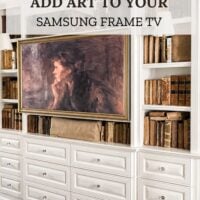
One of my favorite things about owning a Samsung Frame TV is being able to change the artwork whenever the mood strikes. Thankfully, adding new art is pretty simple once you know where everything is hiding in the SmartThings app. Here’s how to add art to your Samsung Frame TV using the current version of the app.
Sometimes I change it with the season. Other times I decide the room could use a little more color, something moodier, or simply something different. And sometimes I’m just tired of looking at the same image.
I think of the artwork on my Frame TV as part of the decorating process. Changing it can shift the whole look of the room without moving furniture, repainting a wall, or buying anything new.
Thankfully, adding new art is pretty simple once you know where everything is hiding in the SmartThings app.
What Size Should Frame TV Art Be?
For an image to completely fill the screen on most 4K Frame TVs, it should be sized to:
3840 × 2160 pixels
This is a horizontal 16:9 ratio.
Using an image with the correct dimensions allows you to display it without a digital mat or awkward cropping around the edges.
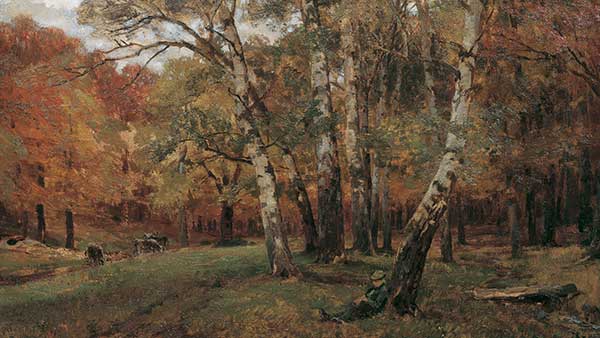
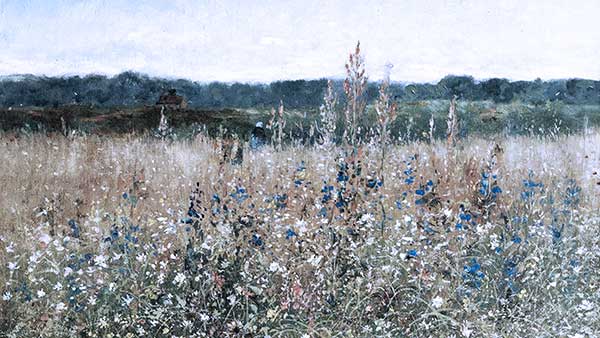
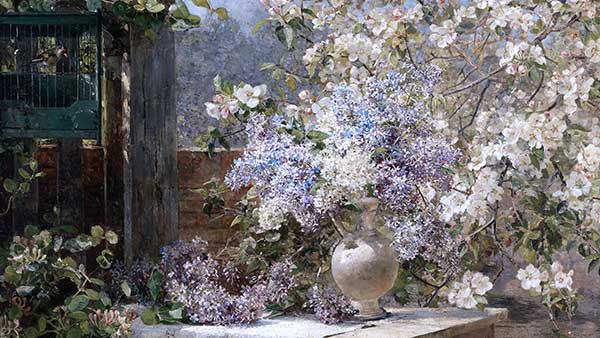
All of the images in my free Frame TV art collections are already sized to 3840 × 2160 pixels, so you can download the artwork and move straight to uploading it.
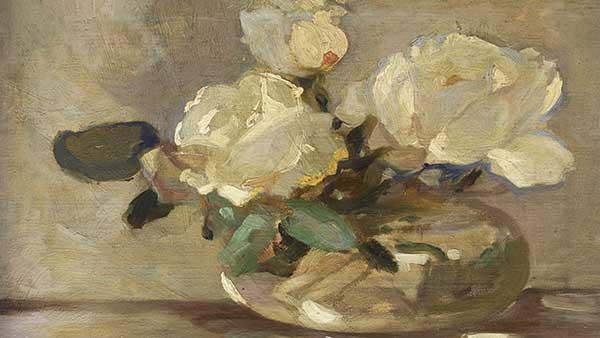
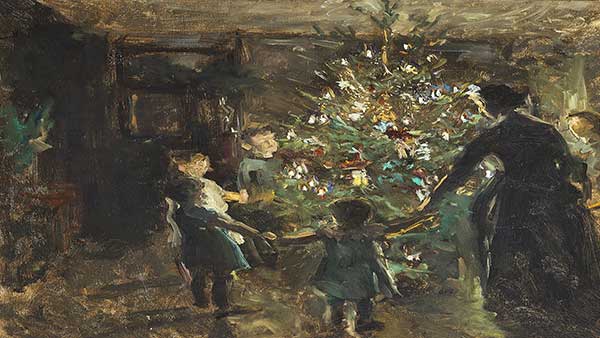
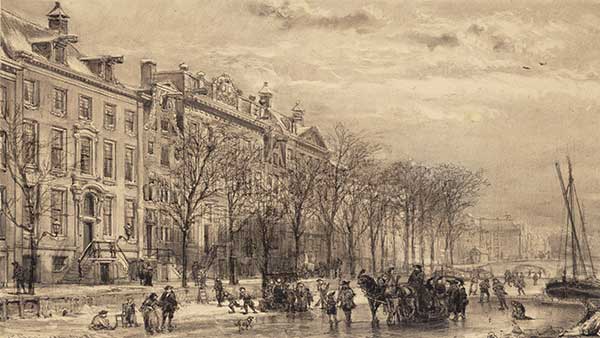
A preview of the full Frame TV Art Collection





Already a subscriber?
Enter the library using your subscriber password
New Here?
Sign up for free to unlock the full downloadable library
How to Add Art to Your Samsung Frame TV
Samsung changes the SmartThings app from time to time, so the wording and placement of the buttons may look slightly different on your phone. These instructions and screenshots reflect the current iPhone version of the app.
Once your TV is connected to SmartThings, it only takes a few minutes to upload art to your Frame TV.
1. Open Your Frame TV in SmartThings
Open the SmartThings app and select your Frame TV.
Your phone and television need to be connected to the same Wi-Fi network.
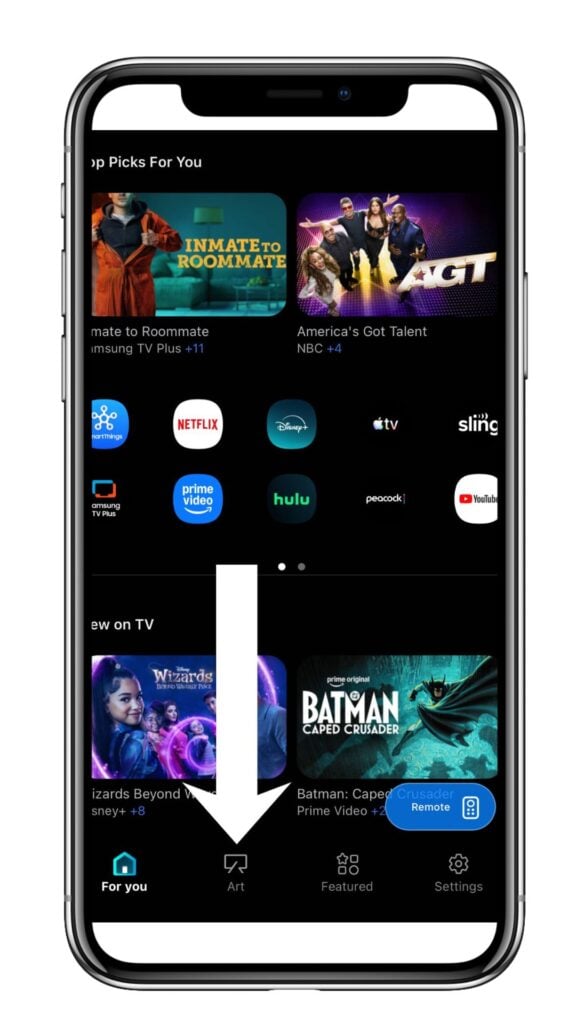
2. Select Art
Tap Art in the navigation menu at the bottom of the screen.
This will take you to the Art Store, where you’ll see your current artwork, your saved photos, and Samsung’s available art collections.
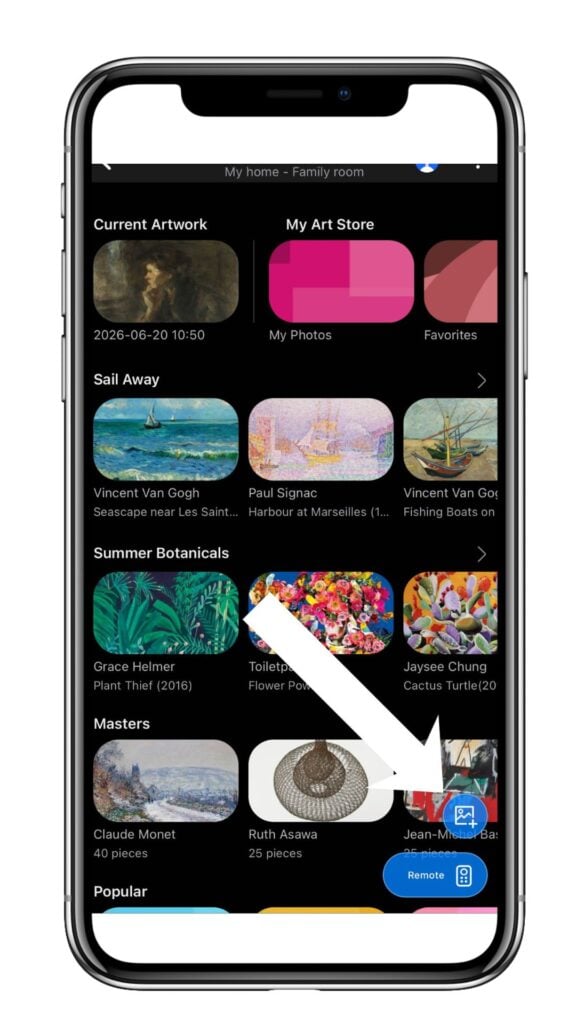
3. Tap the Photo Icon
Tap the small blue photo icon with a plus sign in the lower-right corner.
It isn’t labeled, which is probably why uploading your own art can be confusing the first time. You just have to know it’s there.
Because Samsung changes the SmartThings app from time to time, you may instead see an option labeled Add Your Photos on a different version of the app.
4. Choose the Artwork From Your Phone
Select Photos or Collections, then navigate to the album where you saved your Frame TV art.
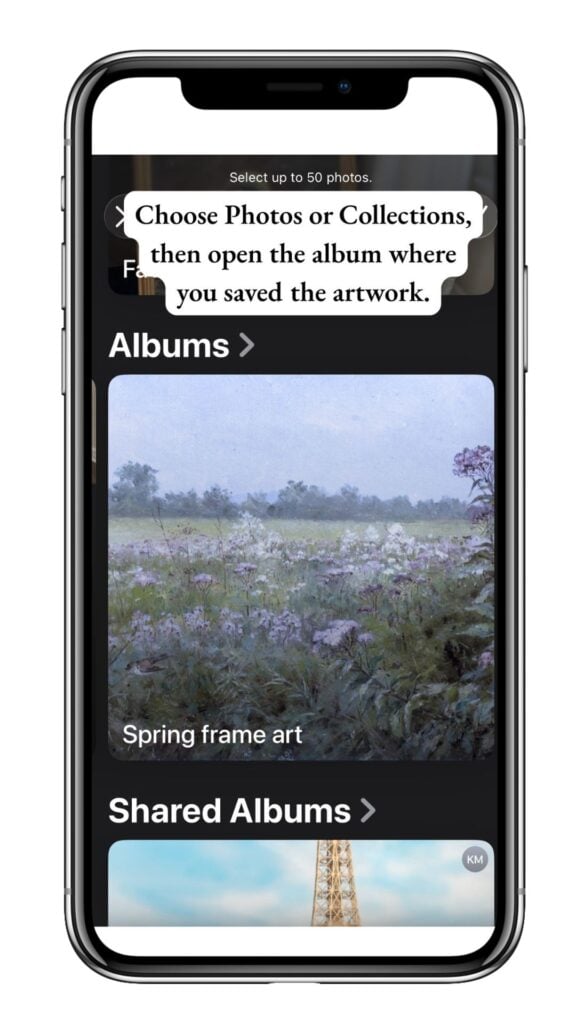
Choose the image you want to display and tap the checkmark in the upper-right corner.
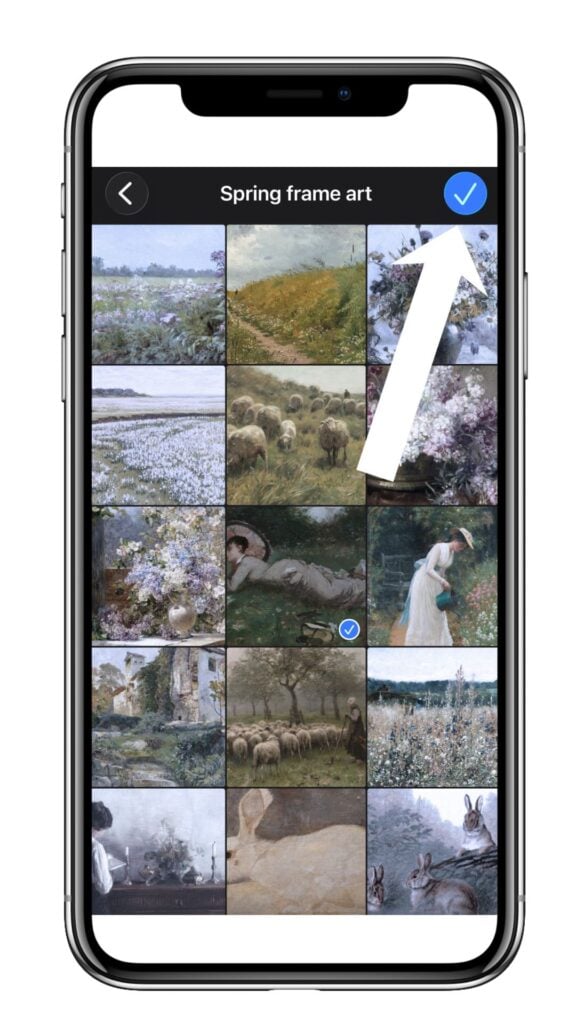
I keep my Frame TV images in their own albums by season. It saves me from scrolling past years of family photos, screenshots, and random pictures of furniture I was considering buying.
5. Choose Your Mat
You’ll now see options for the mat style and color.
Select No Mat if you want the artwork to fill the screen. This works best with artwork that has already been sized to 3840 × 2160 pixels.
You can also choose a thin or wider digital mat if it suits the image better.
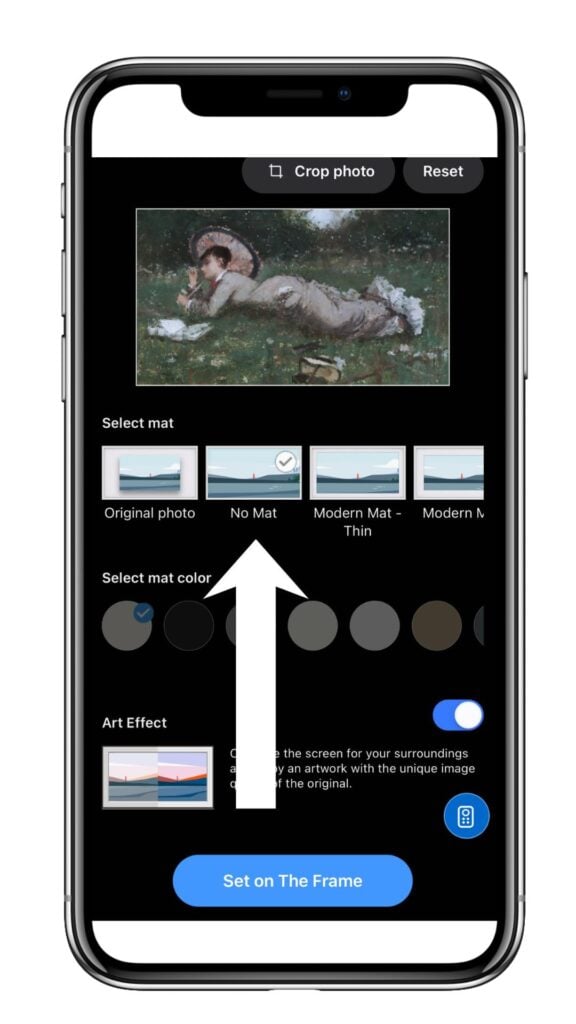
6. Choose Whether to Use Art Effect
The app may also give you an Art Effect option.
Samsung describes this as a way to optimize the image for the room and give it a more art-like appearance. I’d try the image both ways and use whichever looks most natural on your screen.
7. Set the Art on Your TV
Tap Set on The Frame.
Your new artwork should appear on the television.
Once you’ve done this a couple of times, the whole process takes only a minute or two. Choosing which artwork you want to display will probably take longer.
Adjust the Brightness and Color
After the artwork appears on your Frame TV, take a minute to adjust the display.
Use the settings in Art Mode or the three dots in the upper corner of the SmartThings app to adjust the:
- Brightness
- Color tone
- Night Mode
- Motion sensor settings, if available on your model
I usually lower the brightness so the image looks more like artwork and less like a television screen.
The best setting will depend on the lighting in your room. An image that looks perfect during the day might feel much too bright at night, so it helps to check it at different times.
You might also need to adjust the color slightly. Some artwork looks warmer or cooler on the television than it does on your phone.
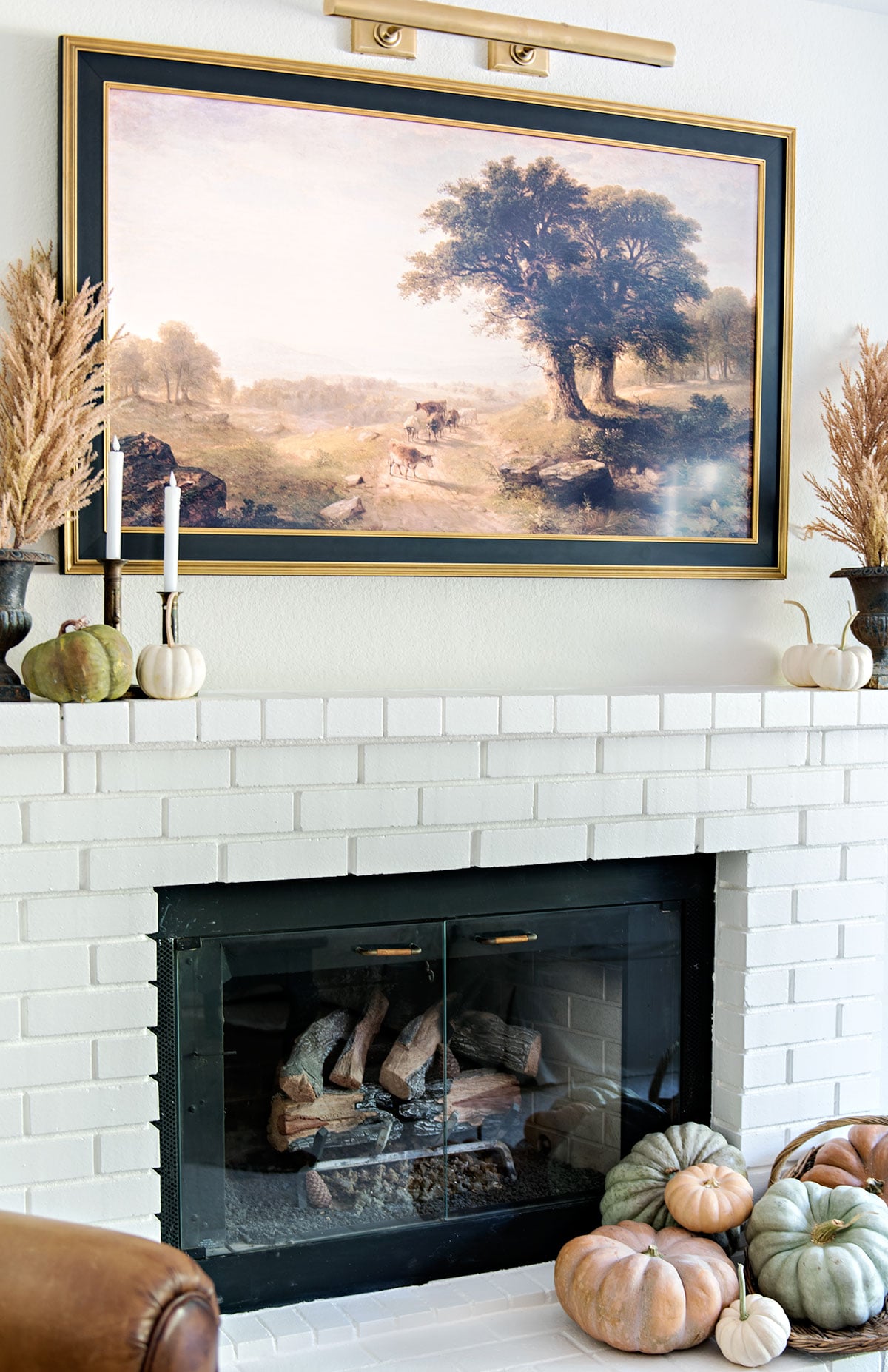
How to Make Frame TV Art Look More Realistic
The artwork you choose matters, but a few other details can help your Frame TV look more like real art and less like a television.
Lower the Brightness
I know I just mentioned this, but it makes such a difference that it’s worth repeating.
A glowing image will always look like a screen. Lower the brightness until the artwork looks similar to the framed pieces hanging elsewhere in the room.
The goal isn’t to make the image as bright and clear as possible. It’s to make it look believable in the light you actually have.
Choose Artwork That Already Looks Like a Painting
I find that vintage landscapes, oil paintings, sketches, portraits, and softly colored artwork look especially convincing on a Frame TV.
Images with visible brushstrokes, softer colors, and a little age tend to look more realistic than bright photography or crisp digital graphics.
There’s no need to edit the image or add texture yourself. Just choose artwork that already has the look you want.
Adjust the Color Tone for Your Room
Artwork can look warmer or cooler on the television than it did on your phone.
Adjust the color tone until the image looks natural with your wall color, furniture, and the other art in the room.
Use No Mat for Full-Screen Paintings
When I’m displaying a landscape or oil painting, I usually choose No Mat and let the artwork fill the screen.
To me, this looks more like one large framed painting and less like an image being displayed on a TV.
A mat can still be a good choice for sketches, botanicals, portraits, or other artwork that would normally be framed with one.
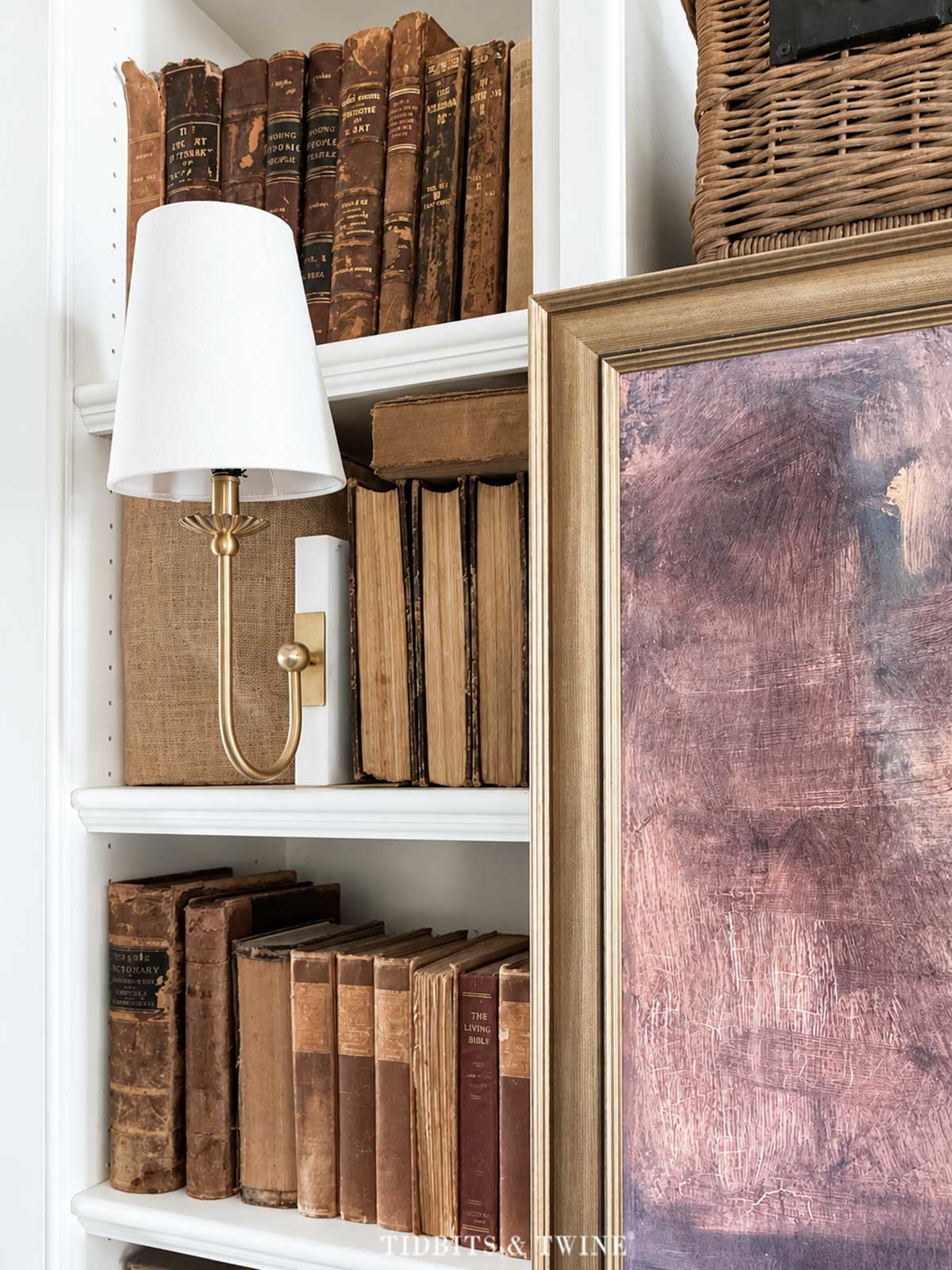
Add a Decorative Frame
Adding a decorative frame or bezel made for the Frame TV can make a big difference in how much it looks like real art.
Without one, the thin black edge can still give the television away. A wood, brass, black, or painted frame helps it blend in with the rest of the room and look more like a piece of framed art.
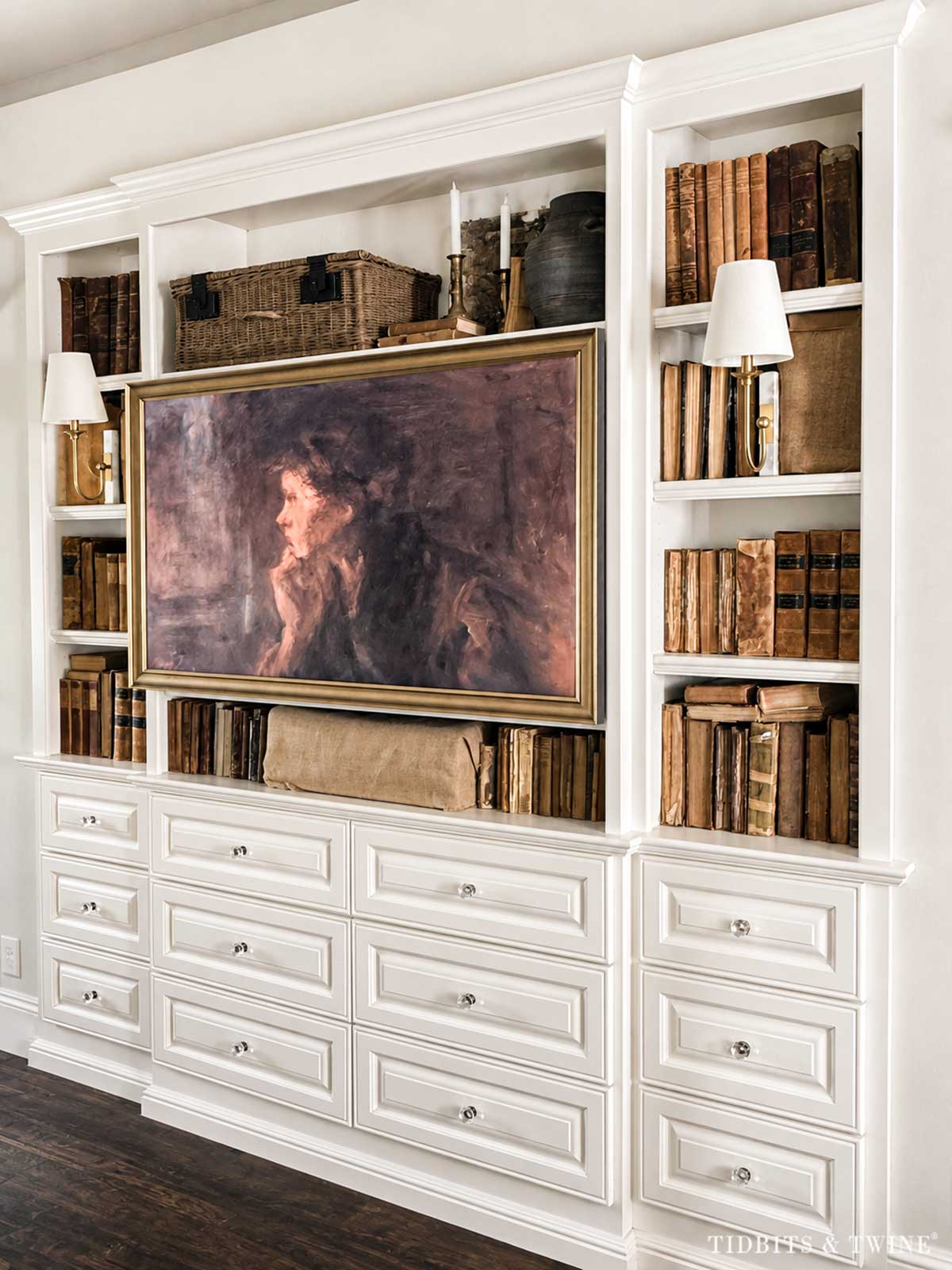
Choose a finish that connects to something nearby, such as your lighting, furniture, picture frames, or other metal finishes. For my bedroom, I chose this industrial brass frame that complements the surrounding decor and warm metal finishes.
Choose Art That Works With the Room
I think about the image on my Frame TV the same way I think about any other piece of art.
It doesn’t need to match the room perfectly, but I do want it to connect to something, whether that’s the color palette, decorating style, season, or simply the mood I want the room to have.
Sometimes I choose artwork that blends in with the room. Other times I use it to bring in a darker color, add contrast, or change the mood a bit.
That’s part of what makes the Frame TV so much fun. You can try something completely different without committing to it forever.
Troubleshooting Your Frame TV Art
Why Isn’t My Frame TV Showing in SmartThings?
First, make sure your phone and television are connected to the same Wi-Fi network.
You can also try:
- Turning on the television before opening the app
- Closing and reopening SmartThings
- Updating the SmartThings app
- Confirming that your television is still listed as a connected device
- Disconnecting and reconnecting the television in the app
Why Can’t I See My Photos?
If you’re trying to add photos to your Frame TV but your images aren’t appearing, check your phone settings to make sure the SmartThings app has permission to access your photo library.
After changing the permission, close and reopen the app before trying again.
Why Is the Artwork Cropped?
Check the dimensions of the image.
For most 4K Frame TVs, artwork designed to fill the screen should be:
- 3840 pixels wide
- 2160 pixels high
- Horizontal
- A 16:9 ratio
An image with different dimensions may be cropped, displayed with a mat, or leave space around the edges.
Why Can’t I Choose No Mat?
If No Mat isn’t available, check the image size and ratio first.
Resize the artwork to 3840 × 2160 pixels, save the new file to your phone, and upload it again.
The available mat options can also vary somewhat depending on your Frame TV model and the version of the SmartThings app.
Why Does the Artwork Turn Off?
Some Frame TV models include Night Mode, which can turn off the display when the room becomes dark.
Open the Art Mode settings and check whether Night Mode or another power-saving setting is causing the artwork to turn off.
Do You Need a Samsung Art Store Subscription?
You do not need a Samsung Art Store subscription to display your own photos or digital artwork.
The Art Store subscription gives you access to Samsung’s collection, but you can also upload images you already own, purchase digital artwork elsewhere, or use free artwork that has been formatted for the Frame TV.
Where to Find Free Frame TV Art
I’ve put together a growing collection of free vintage art for the Frame TV, including landscapes, botanicals, portraits, interiors, and seasonal artwork.
Every Frame TV image has already been sized to 3840 × 2160 pixels, so you don’t need to resize it yourself.
A preview of the full Frame TV Art Collection
Already a subscriber?
Enter the library using your subscriber password
New Here?
Sign up for free to unlock the full downloadable library
Changing the Art Is Part of the Fun
Unlike the other art in my home, the image on my Frame TV can change in a matter of minutes.
I can display something light and fresh for spring, bring in warmer colors for fall, choose a moody painting for winter, or switch it simply because I found another image I like better.
And there’s no need to wait for a major seasonal change. Maybe the room needs a different color. Maybe you rearranged the mantel. Or maybe you’re simply in the mood to look at something new.
It’s a small decorating change, but sometimes those are the most satisfying.
Related Posts

DECORATING MADE EASY
Get my free 5-day decorating course and learn how to define your style, make better decisions, and create a home that feels like you.
After the course, you’ll receive my latest decorating tips, antique finds, and new posts.